ad
Whether it’s for mobile, computer, or consoles, today you’ll learn how to download Roblox and have fun whenever you want!
With millions of experiences generated by users, it’s a universe of fun waiting for you.
In this article, we will guide you step by step to complete the download of Roblox on any device you own.
Types of Games on Roblox and What You Can Do in It
Before we jump into the installation process, it’s exciting to explore what awaits you.
Roblox isn’t just one game, it’s a collection of millions of worlds built by a global community of creators.
This means you can find almost any type of game you can think of, from thrilling adventures to relaxing simulations. This immense creativity is the core of Roblox.
Role-Playing Games (RPG): Dive into intricate stories where you can become a hero, a villain, or anything in between.
Adventure and Obby Games: Test your skills by navigating challenging obstacle courses or exploring vast, mysterious lands.
Simulation Games: Experience real-world activities like running a business, building a theme park, or taking care of virtual pets.
Action and Survival Games: Compete against other players in fast-paced battles or team up to survive against waves of enemies.
Social Hangouts: Relax and chat with friends in virtual cafes, clubs, or beautifully designed social spaces.
How to Download Roblox on Android or iOS Mobile Devices
Playing on the go has never been easier, and Roblox offers a fantastic mobile experience for both Android and iOS users.
The app is fully optimized for touchscreens, allowing you to enjoy millions of games from anywhere with an internet connection.
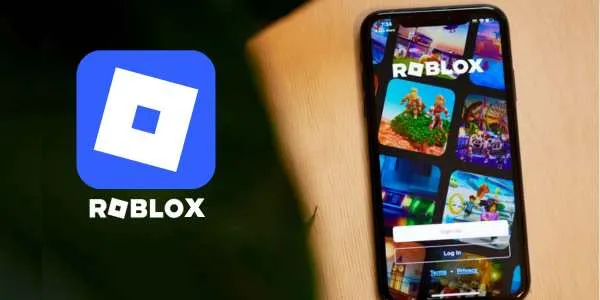
For Android Users:
Step 1: Open the Google Play Store on your phone or tablet.
Step 2: Tap the search bar at the top and type “Roblox”.
Step 3: Select the official Roblox app from the search results.
Step 4: Tap the “Install” button and the app will install automatically.
Step 5: Once completed, open the app and log in or sign up to start playing.
For iPhone and iPad (iOS) Users:
Step 1: Open the App Store on your iPhone or iPad.
Step 2: Tap the “Search” and type “Roblox” into the search bar.
Step 3: Find the official Roblox app and tap the “Get” button.
Step 4: The app will download and install on your device.
Step 5: Once installed, tap the icon to launch the game and begin your journey.
How to Download Roblox on PC or Mac
For many gamers, the precision of a keyboard and mouse or the larger screen of a monitor offers a more immersive experience.
Roblox runs smoothly on both Windows PCs and Macs, and the installation process is managed through the official website.
For Windows PC:
Step 1: Go to the official Roblox website (roblox.com) using any web browser.
Step 2: Log into your account or sign up for a new one.
Step 3: Click on any game you wish to play and a green “Play” button will appear.
Step 4: A notification to install “Roblox Player” will appear, select “Download and Install.”
Step 5: Run the Roblox download installer file that saves to your computer and follow the on-screen instructions.
Step 6: Once done, you can return to the website and click any “Play” button to launch the game.
For Mac:
Step 1: Open your Safari or Chrome browser and navigate to the Roblox official website.
Step 2: Log in or create your Roblox account.
Step 3: Select any game and click the green “Play” button.
Step 4: Download the installer by selecting “Download and Install Roblox.”
Step 5: OIn Downloads, open the .dmg file and drag the icon to the Applications folder.
Step 6: You can now launch Roblox from your Applications folder or by clicking “Play” on the website.
How to Download Roblox on Xbox or PlayStation
Playing on a console offers a relaxed, controller-based gameplay style that is perfect for many types of games on the platform.
The Roblox download process is handled directly through each console’s digital store, making it very simple to get started.
For Xbox (One, Series X, Series S):
Step 1: Turn on your Xbox and navigate to the Microsoft Store.
Step 2: Select the “Search” function and type in “Roblox”.
Step 3: Choose the Roblox app from the search results.
Step 4: Select “Get” or “Install” to download the game.
Step 5: Once the download is complete, you can find Roblox in your “My games & apps” library.
For PlayStation (PS4, PS5):
Step 1: Power on your PlayStation console and go to the PlayStation Store.
Step 2: Navigate to the search bar and enter “Roblox”.
Step 3: Select the official Roblox app from the results.
Step 4: Click the “Download” button to start the installation.
Step 5: After it finishes installing, you can launch it directly from your home screen or game library.
How to Update Roblox and Avoid Issues
After installing Roblox, it’s crucial to keep it updated.
Updates are essential because they introduce new features and exciting content, fix bugs that could interrupt your gameplay, and apply important security patches to keep your account safe.
A smooth, error-free experience depends on running the latest version of the application.
Fortunately, managing updates is usually a hands-off process on most devices.
On Android and iOS, updates are handled through the Google Play Store and App Store, respectively. If you have automatic updates enabled, you won’t have to do anything.
On Xbox and PlayStation, the consoles will automatically check for and download updates when you launch the game.
For PC and Mac, the Roblox launcher automatically checks for a new version every time you start a game from the website, ensuring you’re always up to date without any manual effort.
Initial Settings and Customization Tips
Once your Roblox download is complete, spending a few moments on settings and customization can greatly enhance your experience.
This is where you can shape your digital identity and ensure your account is safe.
From designing your avatar to managing who can interact with you, these initial steps are key to enjoying the platform safely.
Your avatar is your representation in every game you play, so make it unique!
Furthermore, understanding the privacy settings is vital for a positive experience, especially for younger players. Here are some quick tips to get you started:
Customize Your Avatar: Visit the “Avatar” section to change your character’s clothing, accessories, and animations.
Set up privacy: Control who can send you messages, chat, or invite you to games.
Adjust Your Notifications: In the “Notifications” tab, you can choose what you want to be alerted about.
Create a display name: Different from your username, change it to reflect your personality.
Enable 2-Step Verification: For extra security, enable 2-Step Verification in the “Security” settings.
By taking these few simple steps, you can create a more personalized, secure, and enjoyable Roblox experience from the very beginning.